
How to Stream on WebiAir via YouTube
Este artigo ainda não está disponível em PT.
Ver a versão em inglês →In this article, you will learn how to add a YouTube live stream directly to your webinar room in WebiAir.
Important!
This option is suitable if you don’t need multiple video sources or complex setup. You can start your live stream directly from YouTube without any additional software.
WebiAir does not receive the video stream directly. Instead, you start your live stream on YouTube and then add the stream link to your WebiAir webinar room. Participants will be able to watch your live stream directly in the webinar room.
What you’ll need before you start:
A YouTube channel with live streaming enabled.
Google Chrome installed on your device (download the browser).
A webcam or mobile phone (for streaming via the YouTube app).
A created webinar room in WebiAir.
Step 1. Start a Live Stream on YouTube
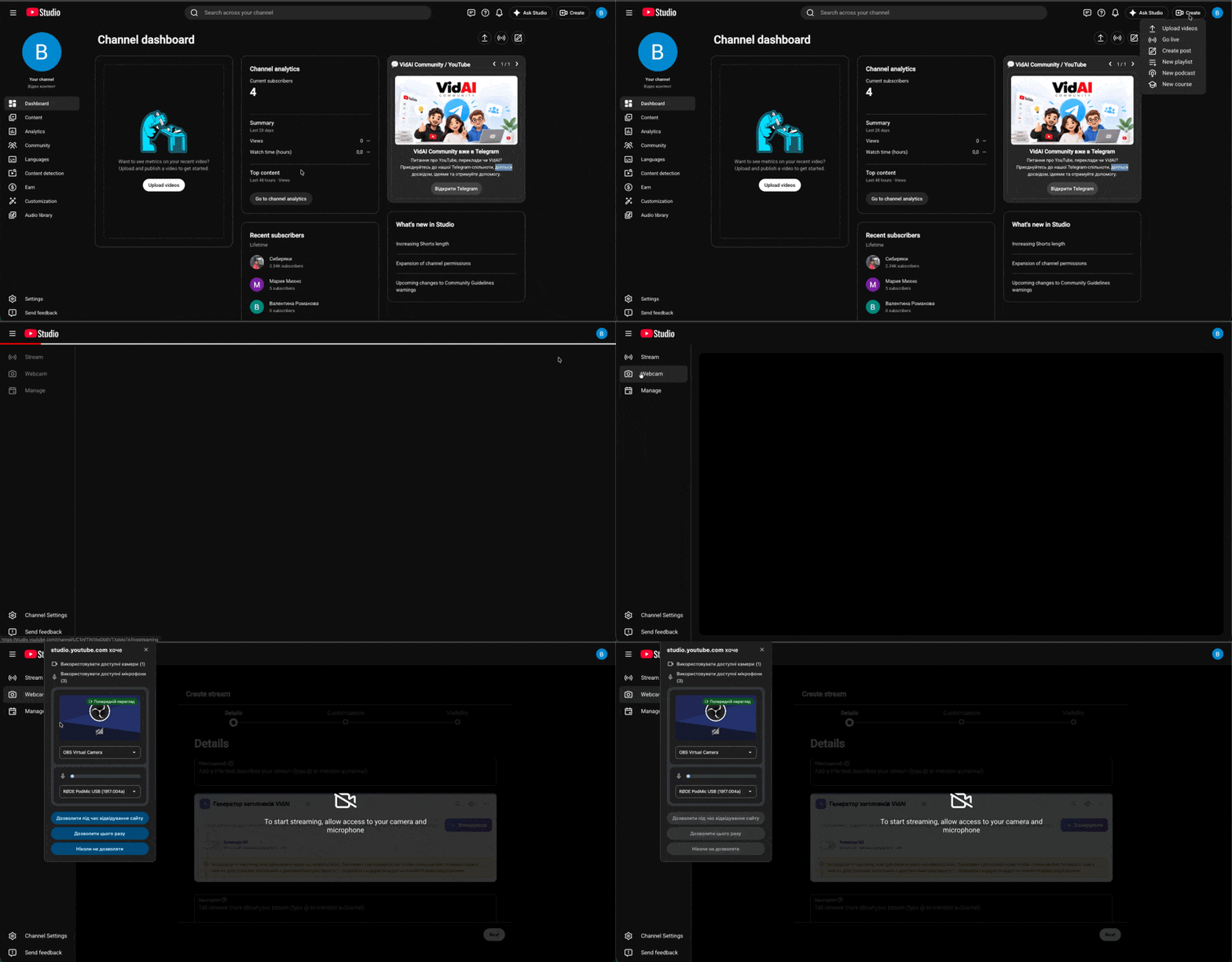
Sign in to YouTube Studio and go to “Create” → “Go Live.”
From the left-hand panel, select “Webcam.”
Allow YouTube to access your microphone and camera.
This is the easiest way to start a live stream without using any additional software.
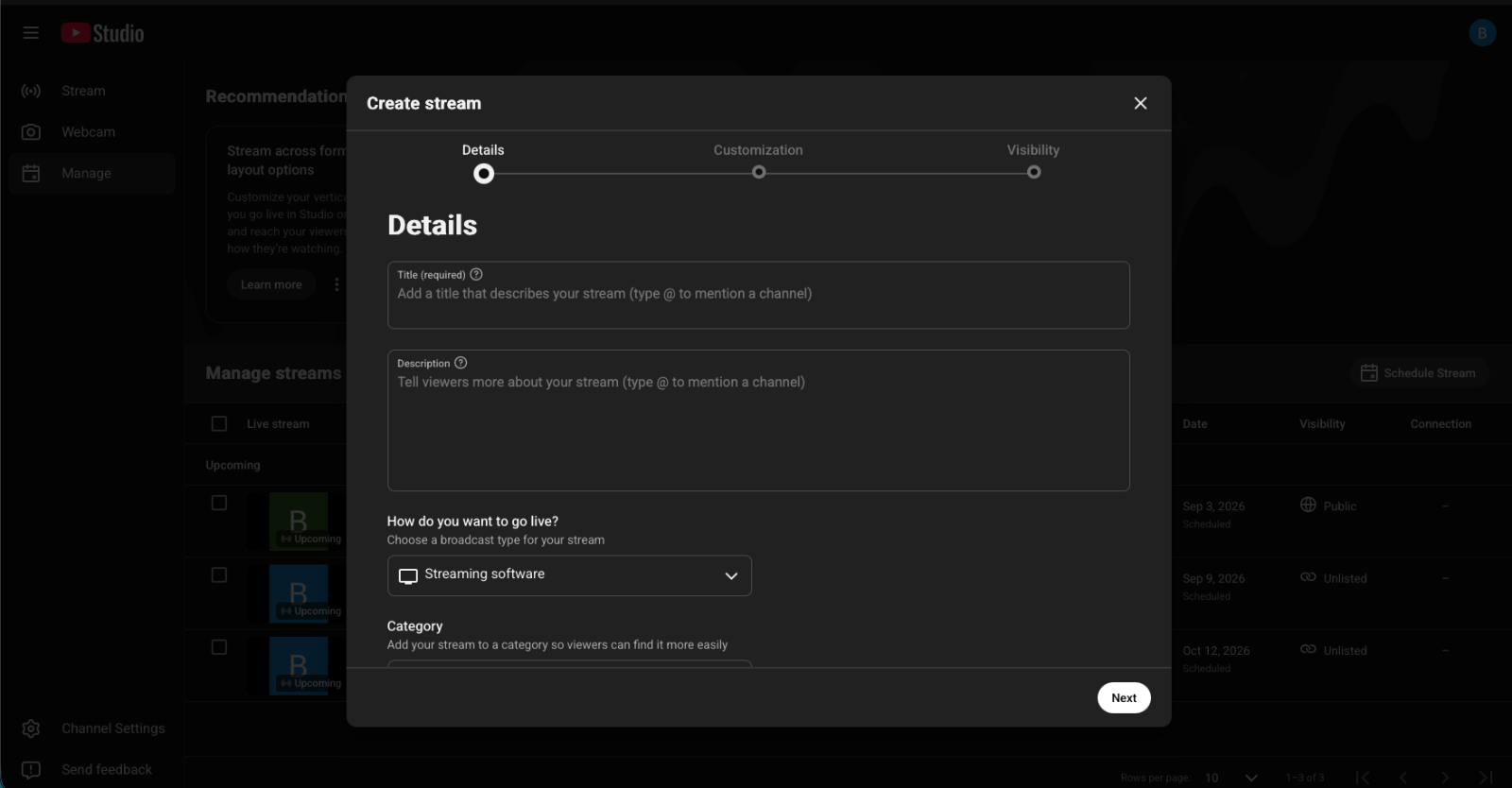
Enter all the required information about your live stream requested by YouTube.
Step 2. Copy the Stream Link and Add It to WebiAir
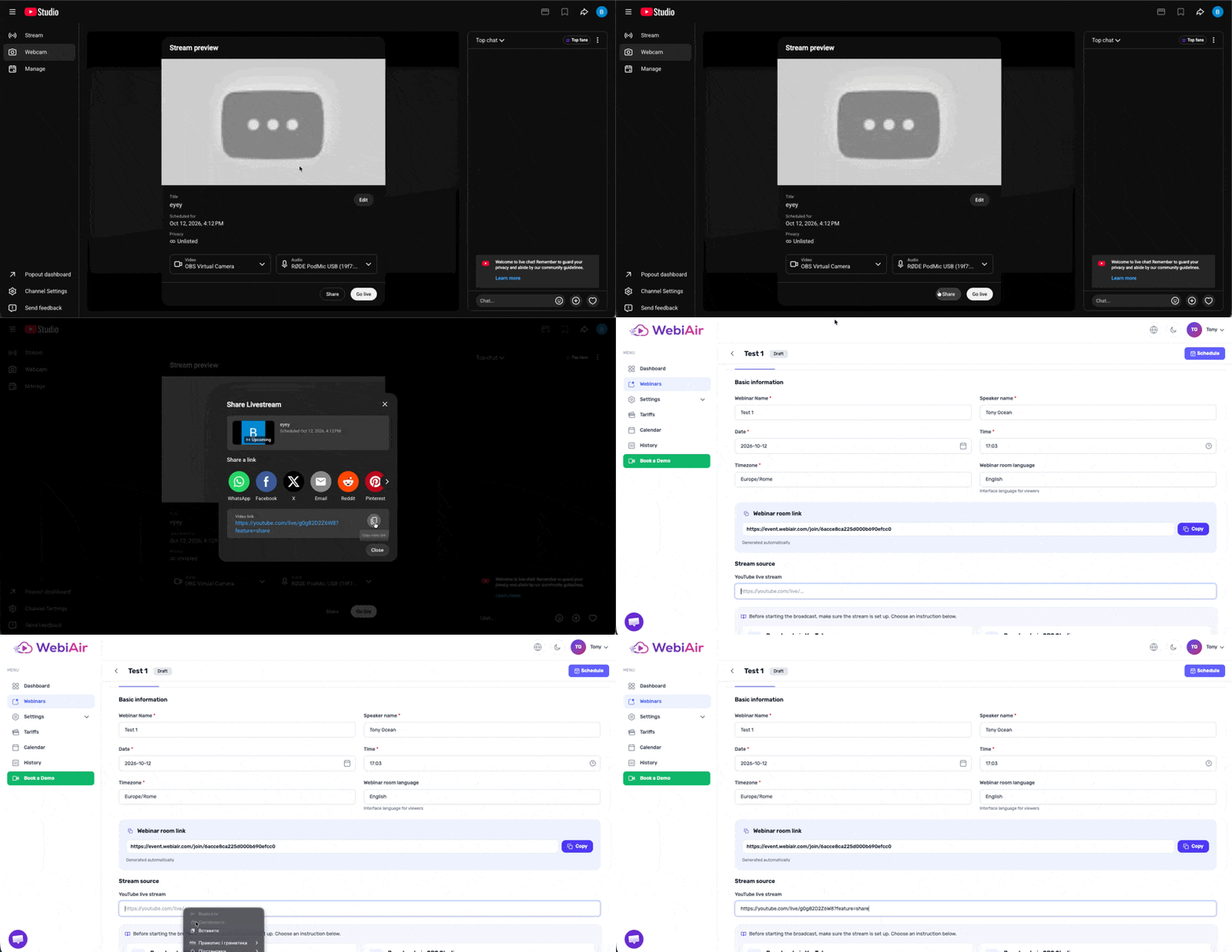
After creating your live stream, you will see a screen with a “Share” button. Click it and copy the stream link.
Go to your already created webinar on the WebiAir platform and paste the link into the “Stream Source” field.
Frequently Asked Questions
How is this method different from streaming via OBS?
With this method, you don’t need any additional software — the live stream is started directly from your browser or phone using your webcam. OBS is useful if you want to show multiple sources, such as a presentation or your screen, or if you need to manage different scenes.
Can I stream from my phone?
Yes. You can stream using the YouTube app on your phone if live streaming is enabled for your channel. Simply copy the live stream link and paste it into WebiAir, just as you would when streaming from a computer.
What should I do if the video in the WebiAir room isn’t updating?
Check that your YouTube live stream is actually active and that you copied the correct link. Then refresh the WebiAir webinar room page.
Este artigo foi útil?