
How to Stream on WebiAir via OBS
Este artigo ainda não está disponível em PT.
Ver a versão em inglês →In this article, you will learn how to integrate a stream from OBS Studio into your webinar room in WebiAir.
Important!
The stream works through YouTube: you stream from OBS to YouTube and then add the link to that YouTube live stream to your WebiAir webinar room. Participants will be able to watch your stream directly in the webinar room.
OBS is useful if you want to display multiple sources at the same time, such as your camera, presentation, browser, and more. It also allows you to add graphics and manage different scenes during your live stream.
What you’ll need before you start:
OBS Studio installed on your device (download here).
A YouTube channel with live streaming enabled.
A created webinar room in WebiAir.
Step 1. Get Your YouTube Stream Details
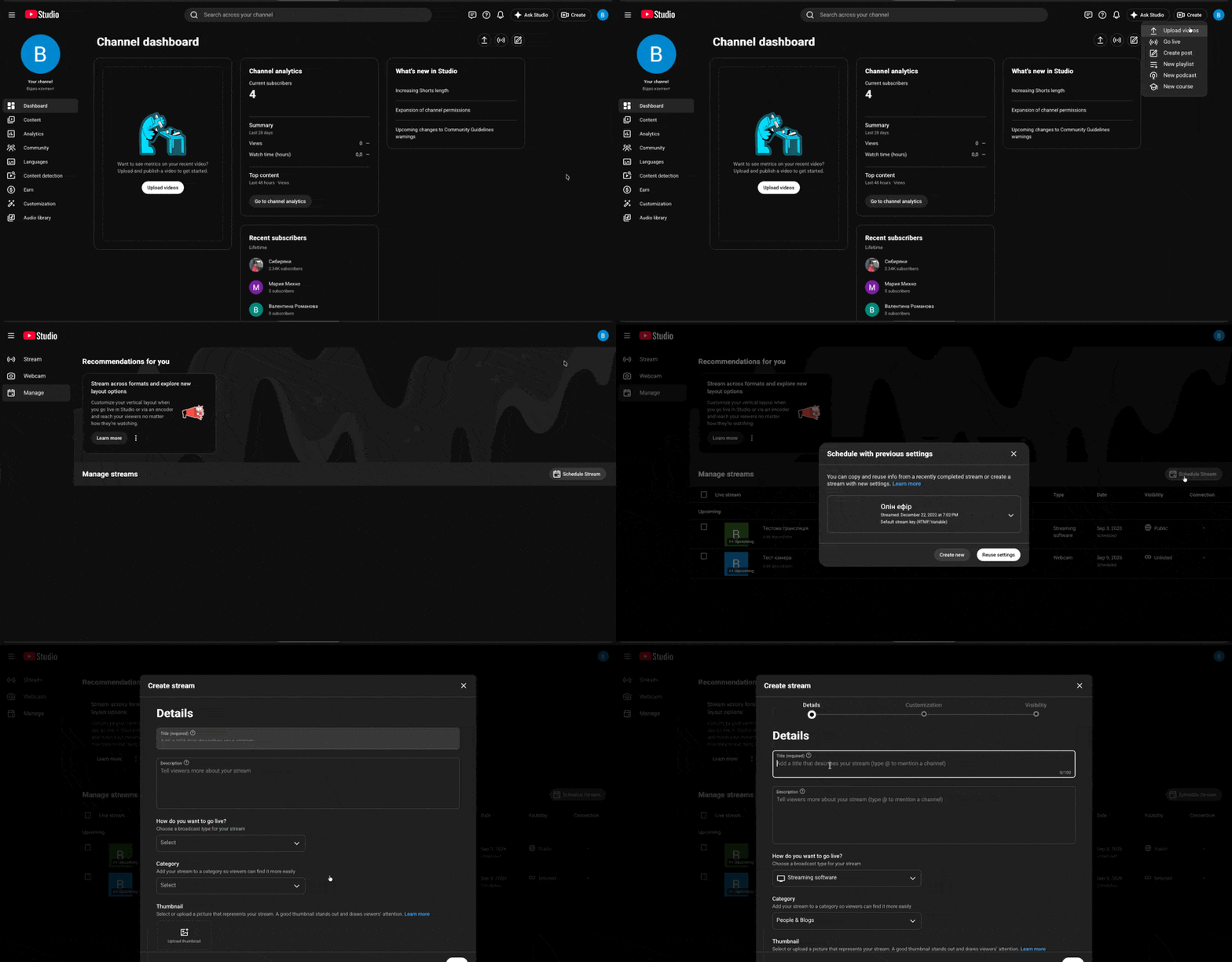
Sign in to YouTube Studio and go to “Create” → “Go Live” → “Schedule Stream” → “Create New”, then enter all the required information about your live stream.
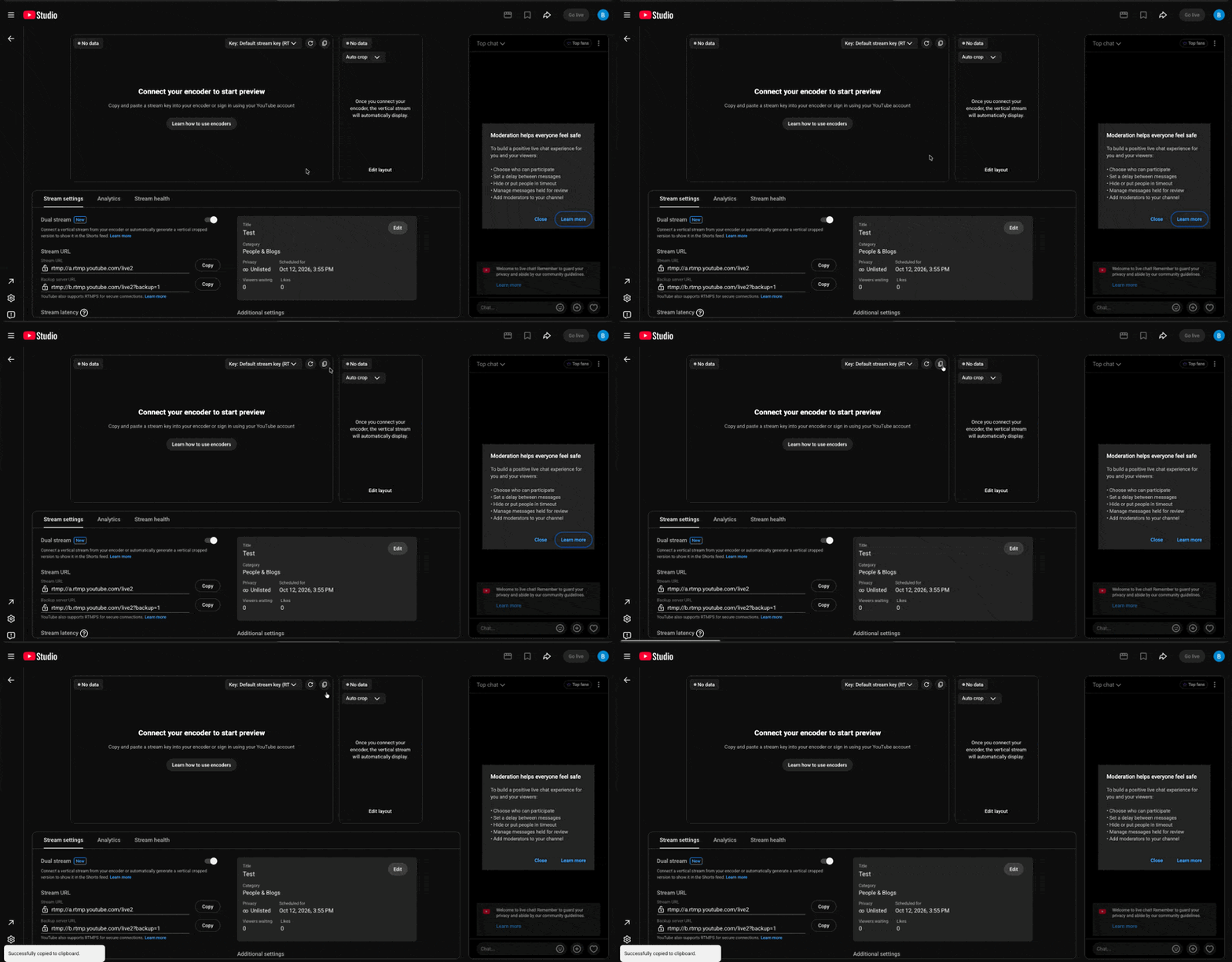
Copy the stream key provided by YouTube.
Important!
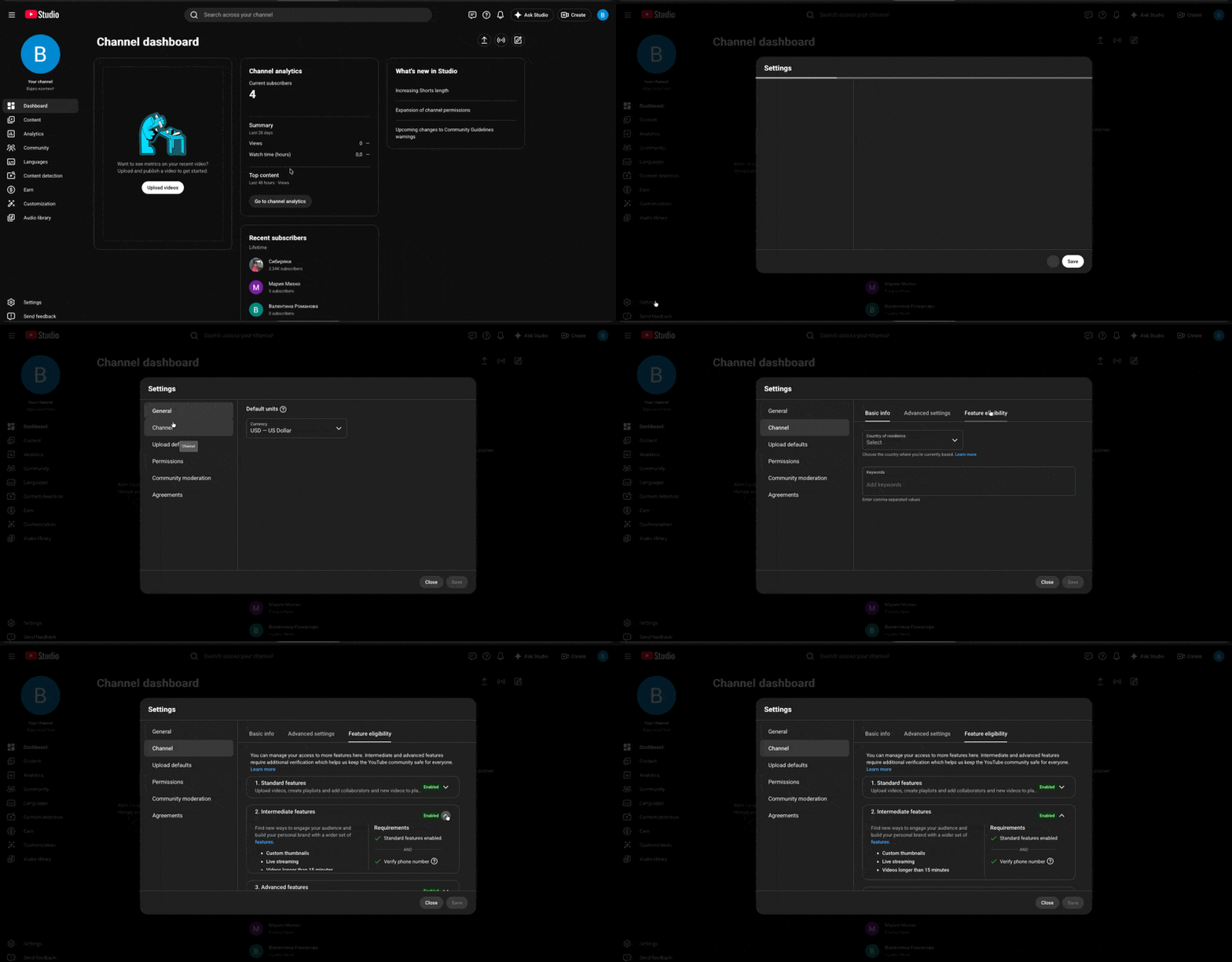
If your YouTube channel is new, YouTube may require you to enable live streaming. This process can take up to 24 hours.
How to enable live streaming on your channel:
Sign in to YouTube Studio and go to “Settings” → “Channel” → “Feature Eligibility”, then verify your phone number and identity documents in sections 2 and 3.
Step 2. Configure OBS
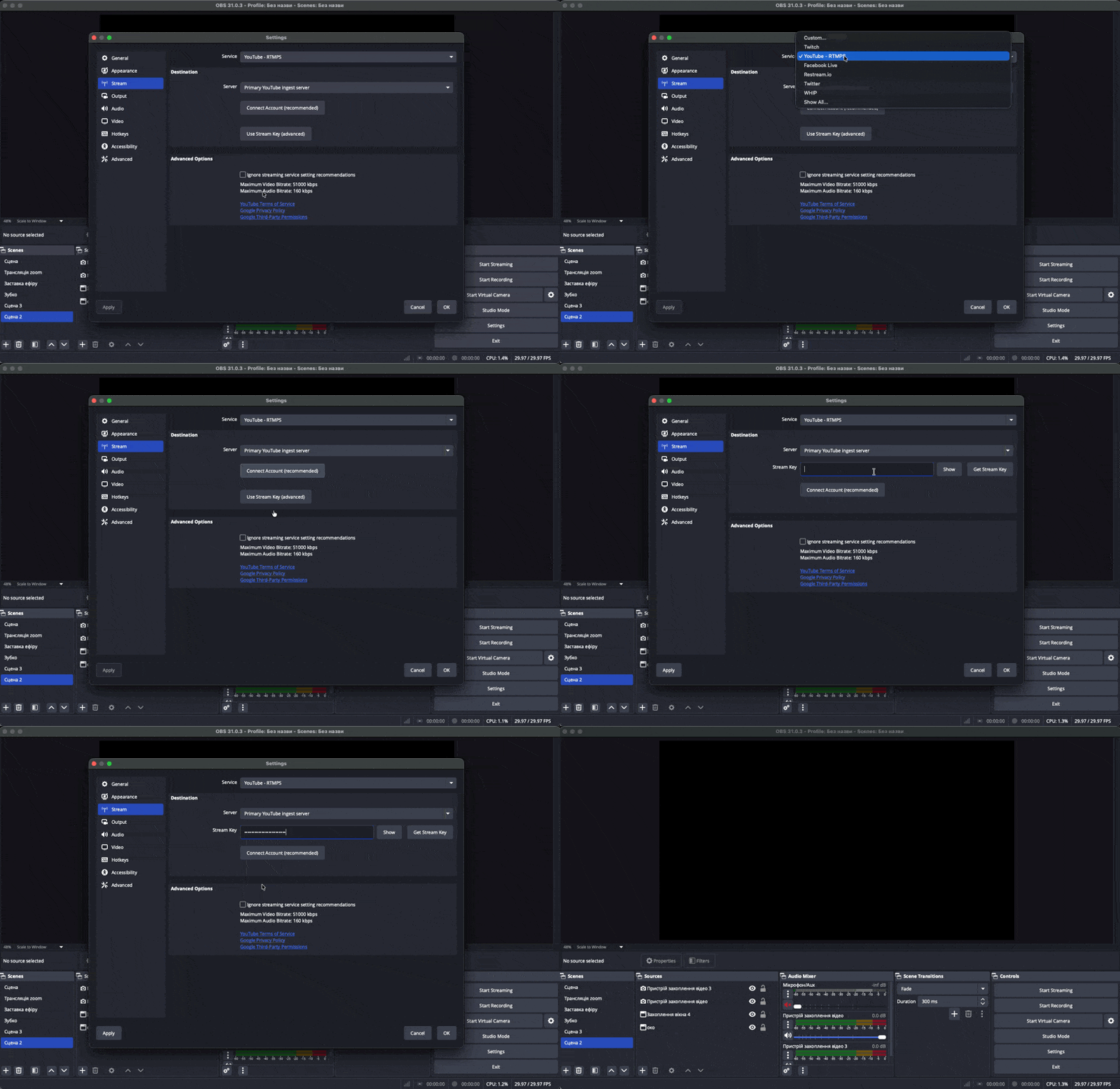
Open OBS Studio → Settings → Stream.
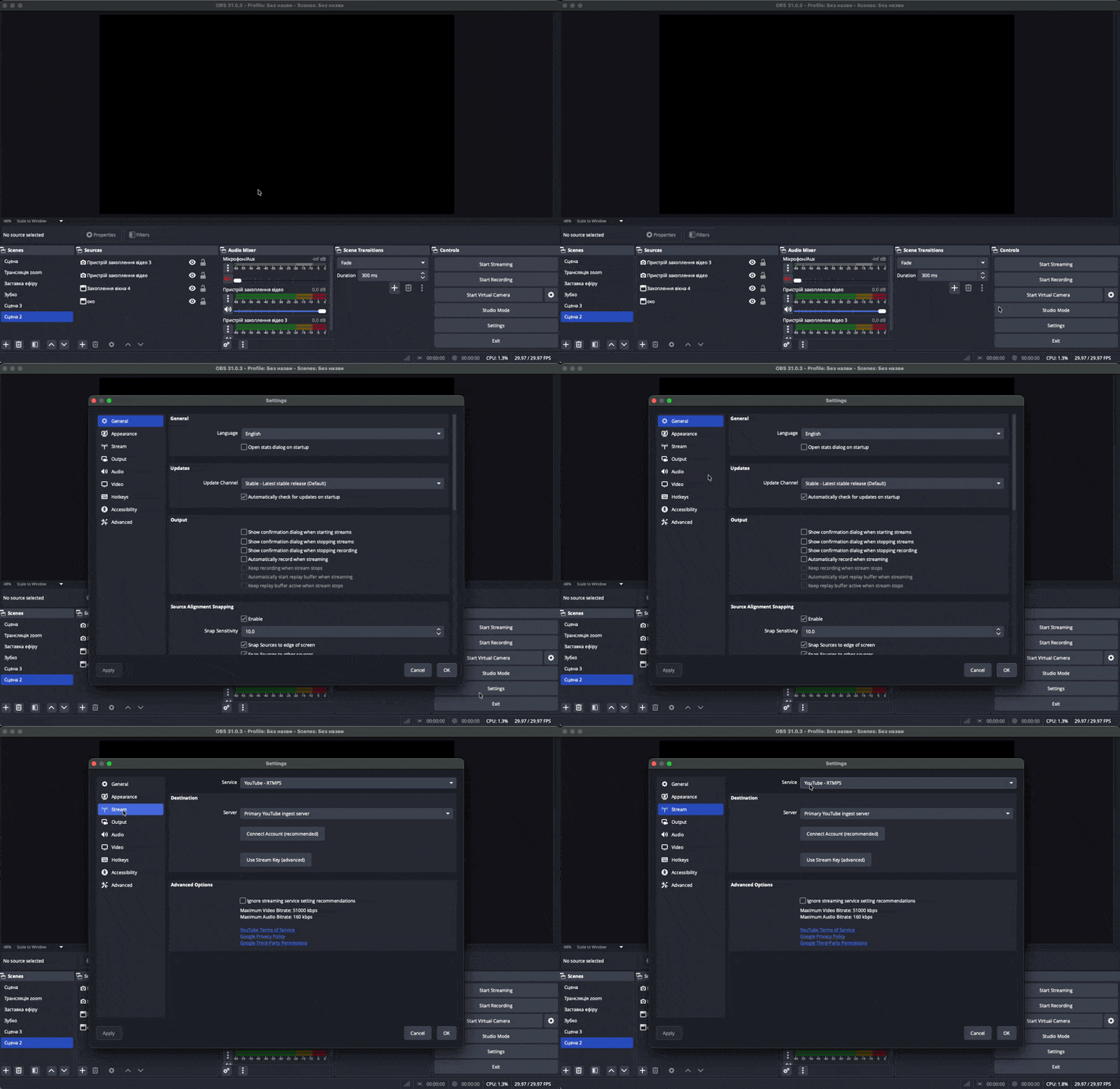
In the “Service” dropdown menu, select “YouTube — RTMPS” → click “Use Stream Key (Advanced)” → paste the stream key you copied from YouTube Studio into the field that appears.
Click “OK” to save the settings.
Step 3. Add Sources and Start Streaming
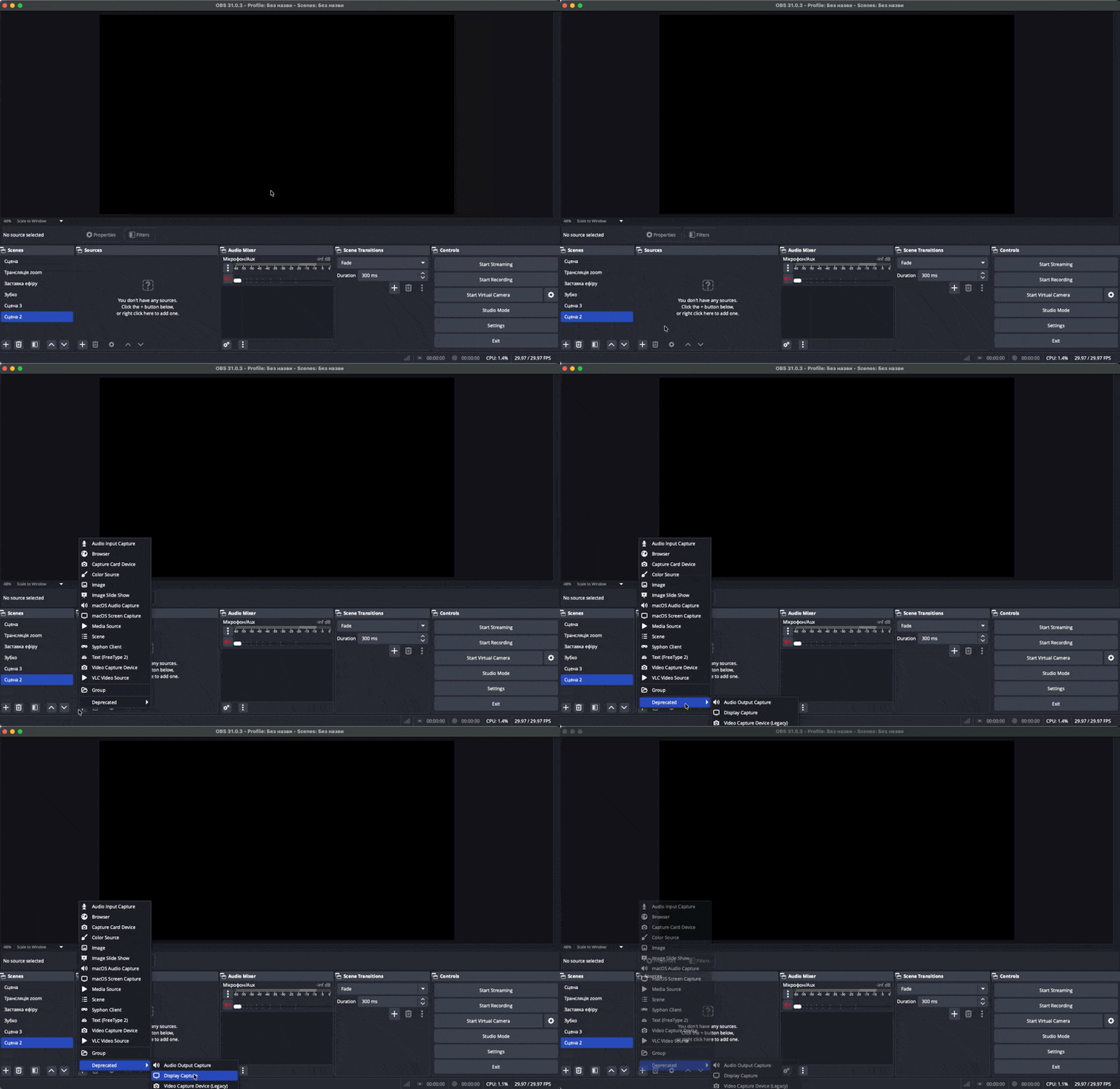
Add the required video sources (camera, presentation, screen) in the “Sources” panel.
Click “Start Streaming” in OBS.
Check YouTube to make sure your live stream is running and the video is displaying correctly.
Step 4. Add the Stream Link to WebiAir
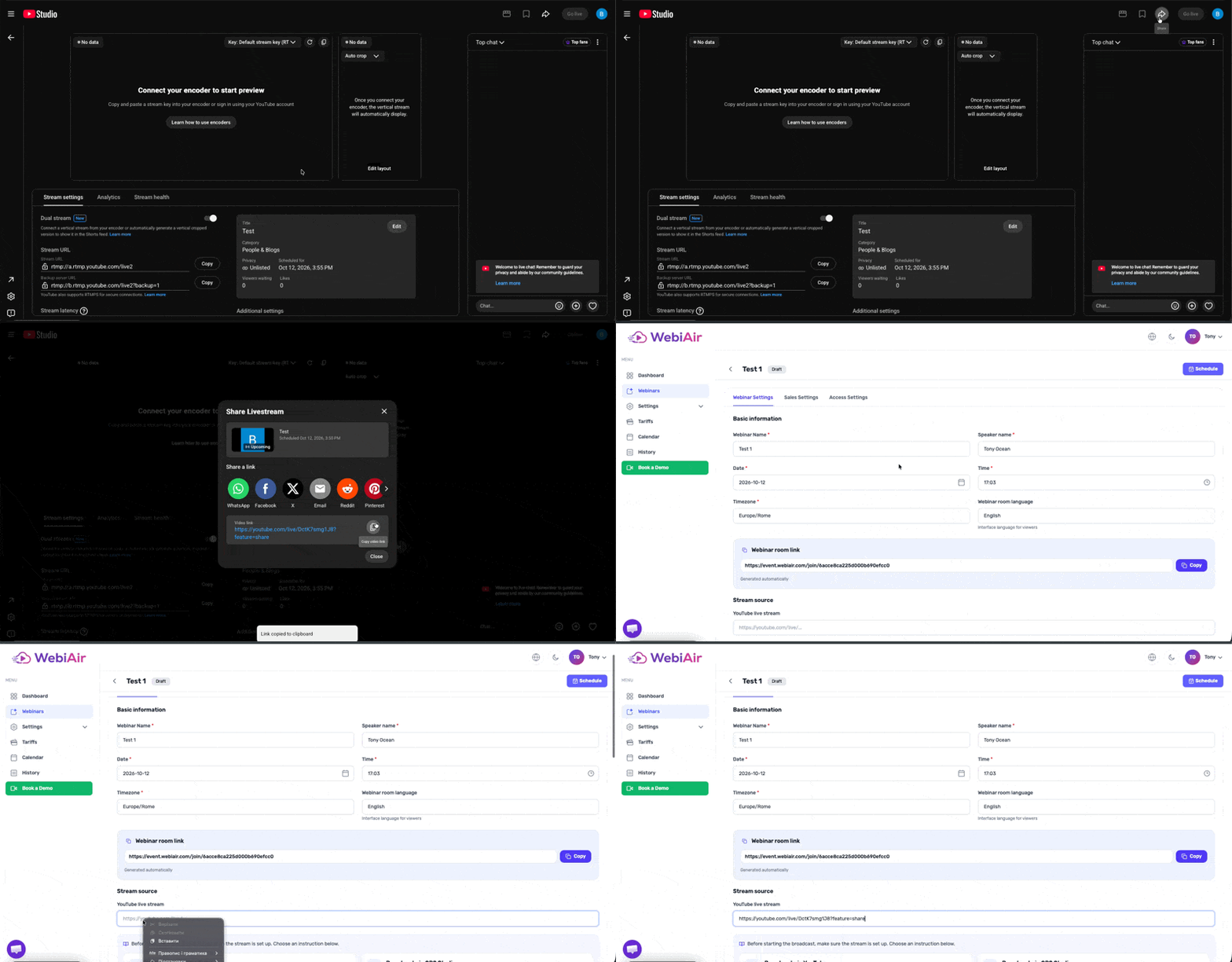
Copy the link to your YouTube live stream.
Open your webinar room settings in WebiAir.
Paste the copied link into the “YouTube Live Stream” field.
Save the settings.
Frequently Asked Questions
Can I add the stream link before the YouTube live stream starts?
Yes, and it’s actually recommended. First, add the stream link to your webinar room settings, and only then start your webinar.
Can participants see YouTube chat and reactions directly in the WebiAir webinar room?
No, only the video is streamed from YouTube. Chat, reactions, and polls in the WebiAir webinar room are separate features built into the platform and are not connected to YouTube chat.
What should I do if the video in the WebiAir room isn’t updating?
Check that your YouTube live stream is active and that you copied the correct link. Then refresh the WebiAir webinar room page.
Este artigo foi útil?